Fix problems connecting WhatsApp
When you connect WhatsApp, Meta opens a window of its own and checks your Facebook account, your business and your number. If it stops you, it shows a message. Find that message below to see what it means and what to do.
Send the assistant a screenshot
The fastest way to know which case is yours: take a screenshot of Meta's window and send it to the Helpium assistant (the robot icon at the top of the dashboard).
- On a computer: take the screenshot, click the message box of the assistant and paste it with Ctrl+V (Cmd+V on a Mac). You can also save it and attach it with the clip button of the chat.
- On your phone: take a screenshot and attach it with the clip button of the chat.
The assistant reads the message on it and tells you what to do. If it is not something you can fix, it puts you in touch with our team.
The Facebook window
The window doesn't open, or it closes by itself. Your browser blocked it, or you are inside another app's browser (Instagram, Facebook or WhatsApp open links in their own). Open Helpium in Chrome or Safari, allow pop-ups for Helpium and click Connect WhatsApp again. Keep the Helpium page open until Meta's window says you are done.
"To keep your business safe, we need to confirm it's you." or "We noticed you're attempting to access this business from a new device or location." Meta wants to check it is you. Finish the check in the tab it opens (or at business.facebook.com), come back to the window and continue.
"Your business portfolio requires two-factor authentication on your Facebook account." Turn on two-factor authentication in your Facebook account (Accounts Center, Password and security) and start again.
"Your Facebook account is too new to create a business account." Wait a few hours, or sign in with an older Facebook account that manages the business.
"Your account access has been restricted." or a message saying your account can't manage business assets. Meta limited that Facebook account. Check it in Meta's Account Quality, or ask another admin of the business to connect WhatsApp.
Your business
"You have reached the limit for the number of Businesses you can create at this time." Don't create a new business portfolio: choose the one you already have.
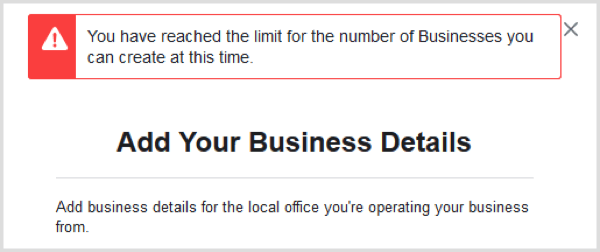
"The name you chose for your business isn't valid." or "The name provided is already in use." Write the real name of your business, the way it appears on your website or social media.
Meta asks for a website and you don't have one. Use the address of your Helpium help center, or the link to your business's Instagram or Facebook page. "The link you entered is not valid." means the address has a typo: copy it from the browser.
"User does not have permission..." or "You are not an admin on this page". Connect WhatsApp with the Facebook account of the person who owns the business portfolio. Being an admin is not always enough: the owner can give you access to the WhatsApp account in Meta's Business Settings, under Users, then Assign assets.
A message about restricted ad accounts, a disabled payment account or a restricted WhatsApp account. Meta blocked something in your business. Fix or appeal it in Meta's Business Support Home first, then connect again.
Your phone number
"Your phone number isn't eligible to connect to the WhatsApp Business Platform." with "More activity on the WhatsApp Business App is needed to help determine eligibility." This only happens when you keep using the WhatsApp Business app: Meta wants to see more use of that number in the app before it lets it in. Keep using the number in the WhatsApp Business app and try again later. Meta doesn't say how long it takes, and there is no review you can ask for.
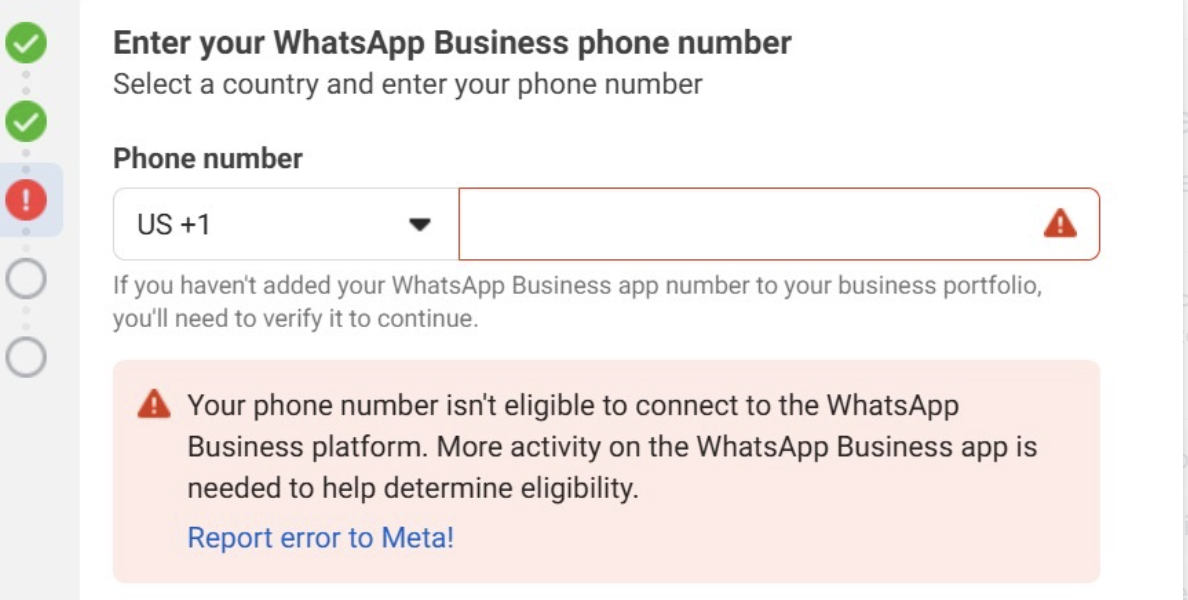
If you can't wait: connect a different number that isn't on WhatsApp, verified by SMS or call. It works right away in Helpium, but that number is then used only from Helpium, not from the app.
"This number can't be connected yet." Same as above: keep using it in the app and try later, or enter a different number.
"Update your WhatsApp Business App to the latest version to use this phone number." Update the app from your phone's store and try again.
"This feature is unavailable for phone numbers from this region." Keeping the app is not available for your country yet. Use a number that isn't on WhatsApp instead, verified by SMS or call.
"This number is already registered on WhatsApp." The number is on the regular WhatsApp, not WhatsApp Business. Move it to the WhatsApp Business app (your chats move with it) and try again. Don't delete the account.
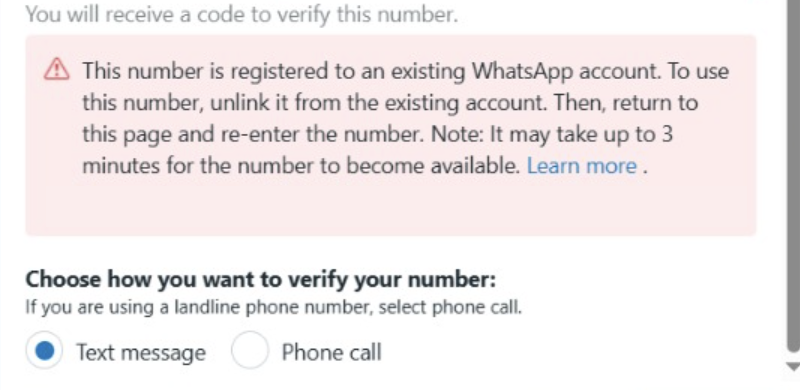
"This number is registered to an existing WhatsApp account. To use this number, unlink it from the existing account." Something else still holds the number. Check these in order:
- The number is linked to a Facebook page or to Instagram (the most common). In the WhatsApp Business app go to Settings, Business tools, Facebook & Instagram and unlink both. On your Facebook page, open Settings, Linked accounts and check that WhatsApp says it's not connected. Then wait 3 minutes and enter the number again.
- An old WhatsApp account of the business is still in Meta. In Meta Business Suite, go to Settings, Accounts, WhatsApp accounts and remove the one with this number.
- You wanted to keep using the app but Meta asks for a code. Go back and choose to keep using the WhatsApp Business app.
Don't delete your WhatsApp account to fix this: you would lose the app on that number.
"The phone number is already linked to a Facebook Page." Go back to the business portfolio step and choose the one that has that page, or unlink the number from the page in Meta Business Suite (Settings, then Accounts) and try again.
"...not associated with the business you selected." or "...in a business portfolio you don't manage." Choose the business portfolio that has this number, or ask its admin for access.
"This phone number is already registered with the product." or "Please disconnect your business platform to continue." The number is connected to another platform. In the WhatsApp Business app go to Settings, Account, Business Platform, tap Disconnect, wait 15 minutes and try again. If another provider still bills your number, ask them to release it.
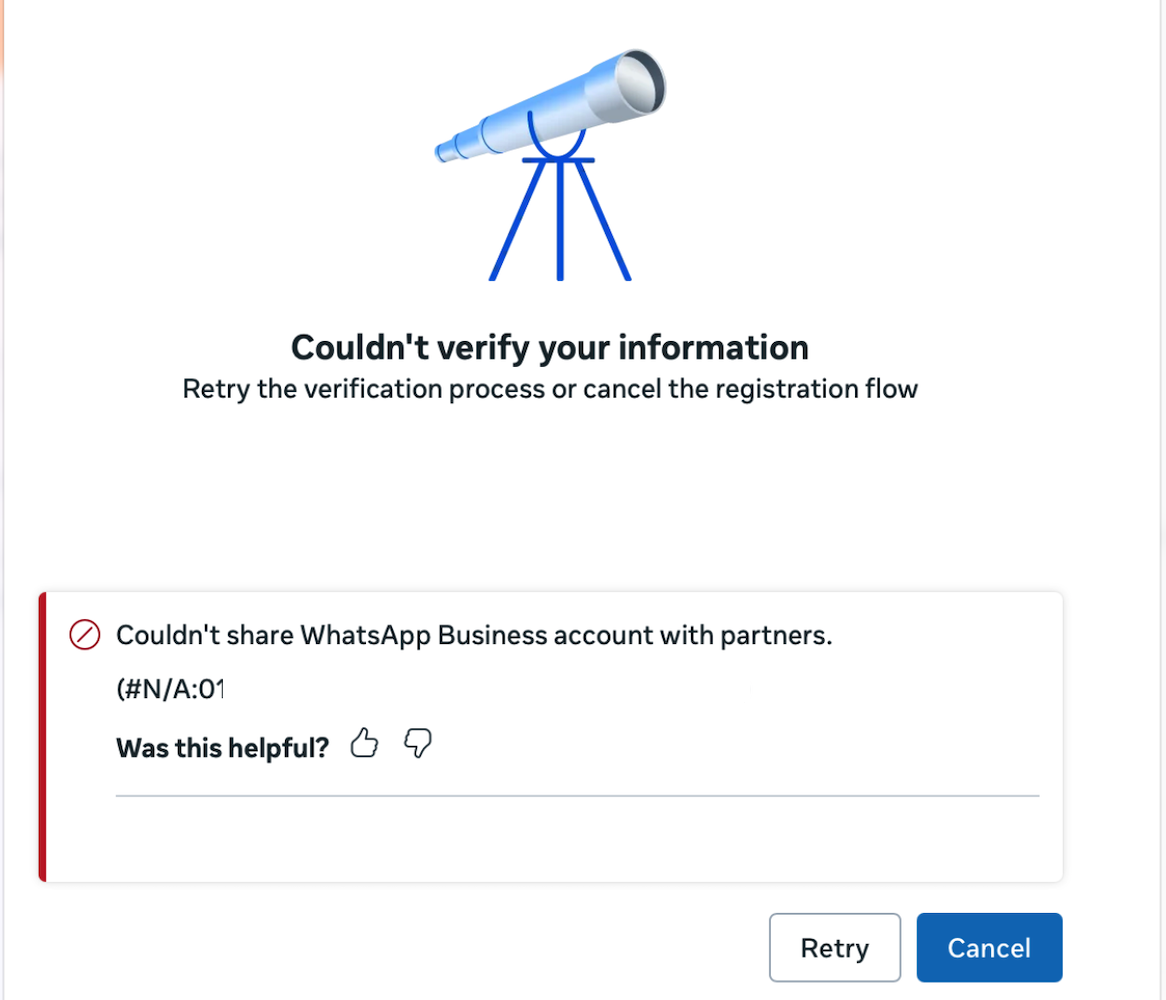
"The business is already sharing this WhatsApp Business account with a partner." or "Couldn't share WhatsApp Business account with partners." Same: disconnect the other platform from Business Platform in the app, wait 15 minutes and connect again. If it keeps happening, check in Meta's Business Settings, under WhatsApp accounts, that no other partner still has that account.
"Your phone number is already linked to automatic events." In the WhatsApp Business app go to Business tools, Labels and turn off Auto labels, then try again.
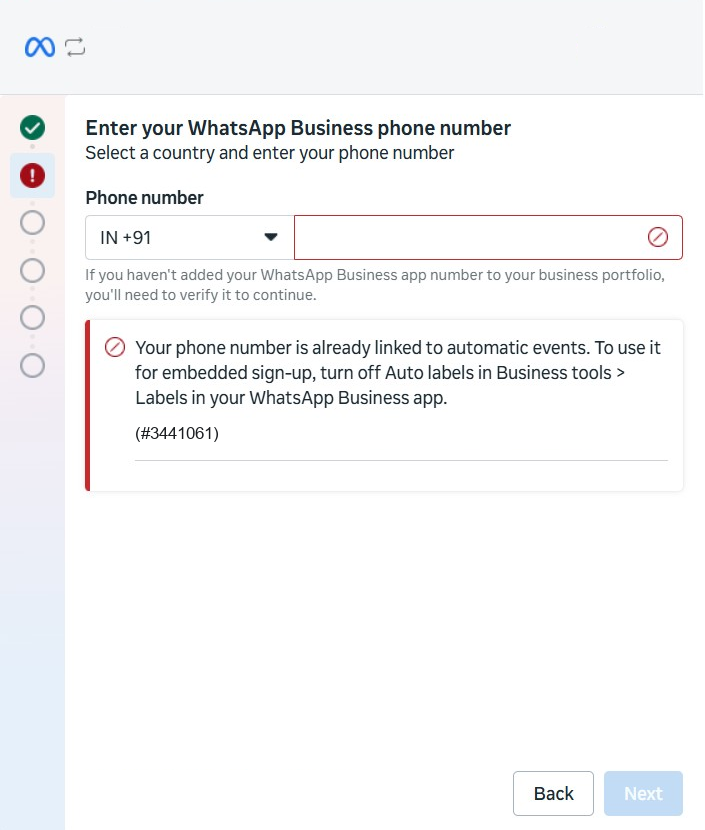
A message about the Meta Business Suite inbox or a Business AI agent. The number is linked to another Meta tool. In the app, disconnect it under Business Platform, and remove the Meta AI agent if you set one up. Wait a few minutes and try again.
"This phone number is not eligible to register or migrate." It usually comes from one of these, so check them in order: the number is still linked to the Meta Business Suite inbox (disconnect it under Business Platform in the app), your Facebook or Instagram account is linked to the number (unlink it in the app and on the page), or the WhatsApp account belongs to a business portfolio you don't fully control.
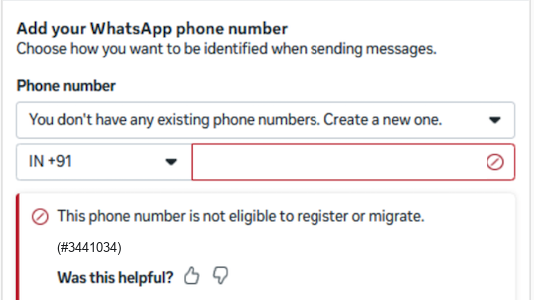
"This number has two-step verification turned on." Turn it off in the WhatsApp Business app (Settings, Account, Two-step verification), or with the link in the message, and try again. You can turn it back on once you are connected.
"...has been deleted or is being deleted" or "...still being disconnected from a previous connection". Wait: disconnecting can take more than a day. If the number was used with another platform before, Meta may want a few weeks of use in the app again.
"This phone number is blocked on WhatsApp" or "The phone number entered is invalid." Check you wrote the country code and the full number. If it is blocked, use another number.
"You have already linked the maximum number of phone numbers allowed." A new business can add two numbers until Meta verifies it. Use a number you already connected, or remove one you don't use.
Codes by SMS or call
You get a six-digit code screen when you wanted to keep the app. Meta took the path for numbers that aren't on WhatsApp. Don't enter a code: close the window, update the app and start again, choosing to keep using the WhatsApp Business app.
"We couldn't send a text to this number." Choose to get the code by voice call. Landlines can only get it by call.
"This number has asked for too many codes." or "You have tried too many times." Wait the time Meta shows before asking again.
The QR code
The QR code expired or doesn't scan. Close the window and start again to get a new one. Update the app, and scan from the WhatsApp Business app (Connect on Facebook's message, or Settings, Account, Business Platform), not from the phone camera.
"Couldn't scan QR code." Meta limited your business account. Check Meta's Business Support Home, then try again.
Your other devices were logged out. That is expected: connecting logs out the companion devices (WhatsApp Web, the desktop app). Log in on them again. WhatsApp for Windows is not supported on a connected number.
After connecting
Meta said it worked but the number isn't in Helpium. Wait a few minutes and reload the page. Don't start the connection several times in a row: each attempt can leave a half-made account that blocks the next one.
It disconnected by itself. Open the WhatsApp Business app at least once every 14 days, and don't uninstall it.
Something works in the app but not in Helpium. On a number you keep in the app, Meta doesn't support groups, calls, disappearing or view-once messages, or live location through the platform.
"Something went wrong"
"Something has gone wrong." with no other detail is a temporary problem on Meta's side. Wait a few minutes and try again. If it keeps happening, send the assistant a screenshot.
Related guides
Was this article helpful?